The AI chat apps people actually reach for, ChatGPT and Claude, are built natively: Swift(UI)/UIKit on iOS, Kotlin/Jetpack Compose on Android. So can a similarly native-feeling chat UI be built in React Native? It is native, after all, so let's build one and find out. We'll call it MargeloChat, and it also answers Margelo-specific questions using a technique called RAG.
Retrieval-augmented generation (RAG) is a technique that enables large language models (LLMs) to retrieve and incorporate new information from external data sources.
Two libraries do the heaviest lifting here: LegendList, whose v3 ships AI-native list features out of the box, and react-native-keyboard-controller, which spares you every fight you've had with React Native core's Keyboard. Fun aside: their authors, Jay Meistrich and Kiryl Ziusko, are both Margelo Avengers.
Okay, enough intro, let's build. Starting off with the composer.
Liquid-glass Floating Composer
Looking at the demo, four things stand out: the glass itself, the text input gliding with the keyboard, the composer swelling for an attachment, and the faded Margelo logo drifting up.
The liquid glass composer and buttons use @callstack/liquid-glass by Callstack. Its single LiquidGlassView wraps UIKit's real glass material, but that only exists on iOS 26+. On older iOS and Android it has nothing to render, so we need a fallback.
The library hands you a native constant for exactly this:
import {isLiquidGlassSupported, LiquidGlassView} from '@callstack/liquid-glass';
isLiquidGlassSupported is a UIKit capability check on iOS, hard-coded false everywhere else, so it's a plain boolean you can branch on. I wrapped that branch once in a tiny Glass component:
// Real liquid glass on iOS 26+, a plain rounded surface everywhere else.
export function Glass({interactive, tintColor, style, children, ...rest}: GlassProps) {
  if (isLiquidGlassSupported) {
    return (
      <LiquidGlassView
        interactive={interactive}
        effect="regular"
        colorScheme="dark"
        tintColor={tintColor}
        style={style}
        {...rest}>
        {children}
      </LiquidGlassView>
    );
  }

  return (
    <View style={[{backgroundColor: tintColor ?? theme.glassFallbackBackground}, style]} {...rest}>
      {children}
    </View>
  );
}
Every glass surface, the + button, the input pill, the send button, is just <Glass>: live glass on iOS 26, a flat tinted rounded rect with the same layout elsewhere, so nothing shifts. For the full effect list and what interactive does, see the @callstack/liquid-glass docs.
Gliding with the keyboard
The composer's first bit of motion is keeping pace with the keyboard.
The composer is pinned to the bottom of the screen (position: 'absolute') and wrapped in a single component from react-native-keyboard-controller, KeyboardStickyView:
<KeyboardStickyView offset={{opened: insets.bottom}} style={styles.composer}>
  <Composer value={input} onChangeText={setInput} onSend={onSend} ... />
</KeyboardStickyView>
That's the whole trick. KeyboardStickyView reads the keyboard's live height on the UI thread (via Reanimated) and applies it to the composer as a translateY, so the input rides the keyboard's exact curve frame for frame, no JS round-trip and no lag.
offset.opened is set to the bottom safe-area inset: closed, the composer keeps its home-indicator gap; open, that inset is reclaimed so no dead space opens between the input and the keys. See the KeyboardStickyView docs for the offset options and hooks.
Swelling for attachments
Attach a photo and the pill grows to fit a thumbnail strip, then shrinks back when you remove it. The trick is to measure the content's natural height once and animate between 0 and that number inside a clipped container:
const [thumbsContentHeight, setThumbsContentHeight] = useState(0);

const thumbsStyle = useAnimatedStyle(() => ({
  height: withTiming(hasAttachments ? thumbsContentHeight : 0, {
    duration: THUMBS_ANIM_MS,
    easing: Easing.inOut(Easing.ease),
  }),
  opacity: withTiming(hasAttachments ? 1 : 0, {
    duration: THUMBS_ANIM_MS,
    easing: Easing.inOut(Easing.ease),
  }),
}));
The strip renders inside an overflow: 'hidden' wrapper whose height is driven by thumbsStyle. An inner onLayout reports the real content height back into thumbsContentHeight, so the animation always lands on the exact right size no matter how many images are picked:
<Animated.View style={[styles.thumbsClip, thumbsStyle]}>
  <View onLayout={e => setThumbsContentHeight(Math.ceil(e.nativeEvent.layout.height))}>
    {displayedAttachments.map(/* thumbnails */)}
  </View>
</Animated.View>
Two details keep it smooth: the pill's height sums the text and thumbs heights into one animated value, so the glass swells in lockstep with the strip; and on removal the attachments stay mounted through the collapse (a displayedAttachments copy cleared on a timeout), so the strip shrinks to zero before unmounting instead of popping.
Lifting the logo with the keyboard
The composer isn't the only thing that moves with the keyboard.
Before the first message, a faded Margelo logo sits centered behind the composer (opacity: 0.2). When the keyboard opens it needs to rise so it clears the composer, and it should move on the same curve as everything else.
It uses the same keyboard hook as the composer, but reaches for progress instead of height:
const {progress} = useReanimatedKeyboardAnimation();

const animatedStyle = useAnimatedStyle(() => ({
  transform: [{translateY: progress.value * -(composerHeight + LOGO_GAP)}],
}));
progress runs 0 -> 1 on the UI thread as the keyboard opens, so multiplying it by the lift distance gives a translateY that animates in lockstep with the keyboard. The distance is the measured composer height plus a small gap rather than a magic number, so the logo always clears the composer even when it has grown to hold an attachment, or on a device with a taller safe area.
Let's send a message, shall we?
On sending a message, a few things are noticeable:
- The "Hey" text smoothly glides up in a ChatGPT-like pattern
- The assistant replies and the message is streamed in and rendered quite nicely
- Native iOS SF Symbols are rendered below each assistant message
- And much more
The slide-in animation
Reanimated ships built-in layout animations, and the user bubble uses one directly. As the row mounts, an entering animation slides it up from below into place:
<Animated.View
  style={styles.userRow}
  entering={SlideInDown.easing(Easing.out(Easing.exp)).duration(700)}>
  {/* the grey bubble, plus any image thumbnails */}
</Animated.View>
SlideInDown is a Reanimated entering preset that animates the view up from below. The Easing.out(Easing.exp) curve sells it, starting fast and decelerating hard so the bubble shoots up and settles instead of sliding linearly.
The assistant side is timed to match: while the reply is empty a "Thinking" shimmer shows, its fade-in delayed so it doesn't pop in over the bubble mid-slide:
<Animated.View entering={FadeIn.delay(450).duration(300)}>
  {/* Icon + "Thinking" shimmer */}
</Animated.View>
The 450ms delay lets the user bubble finish settling before "Thinking" eases in beneath it, so the two read as one motion instead of competing.
The shimmering "Thinking" text
While the model works, the "Thinking" label shimmers: a bright band sweeps across the glyphs, the same "working on it" cue ChatGPT for iOS and v0 use. It's drawn with React Native Skia: the text renders into a Canvas, its glyphs filled with a horizontal dim -> bright -> dim gradient.
The sweep is driven by Skia's useClock, a shared value that ticks every frame on the UI thread:
const clock = useClock();
// A highlight band that sweeps left to right once every periodMs.
const startX = useDerivedValue(
  () => -band + ((clock.value % periodMs) / periodMs) * travel,
);
const gradientStart = useDerivedValue(() => vec(startX.value, 0));
const gradientEnd = useDerivedValue(() => vec(startX.value + band, 0));
The clock modulo periodMs, scaled, ramps 0 -> 1 each cycle, walking the gradient's start and end across the text. With three stops (dim / bright / dim), that's a highlight window sliding over otherwise-dimmed glyphs:
<SkiaText x={x} y={y} text={line} font={font}>
  <LinearGradient
    start={gradientStart}
    end={gradientEnd}
    colors={[baseColor, highlightColor, baseColor]}
    positions={[0, 0.5, 1]}
  />
</SkiaText>
Scrolling the sent message to the top
The slide-in only handles the bubble appearing; the other half is where it lands. Like ChatGPT, a just-sent message should ride to the top and hold there while the reply streams in below, even before there's enough content to scroll that far. That's anchoredEndSpace, a Legend List chat feature: it anchors a chosen item to the top by inserting trailing blank space below it when the content doesn't fill the viewport.
On send we name the message to anchor and animate a scroll to the end:
const onSend = useCallback(() => {
  setAnchorIndex(messagesLenRef.current); // anchor the message we're about to add
  send(input, attachments);
  setInput('');
  if (Platform.OS === 'ios') {
    scrollMessageToEnd({animated: true, closeKeyboard: false});
  }
  // ...
}, [/* ... */]);

<KeyboardAwareLegendList
  anchoredEndSpace={
    anchorIndex != null
      ? {anchorIndex, anchorMaxSize: ANCHOR_MAX_SIZE, anchorOffset: insets.top + 56, onSizeChanged}
      : undefined
  }
  // ...
/>
With that blank space padding the list below the just-sent message, animating a scroll to the end lifts it to the top and parks it there. anchorOffset (the header height) subtracts from the inserted space so the row stops just short of the top edge, and anchorMaxSize caps how much is added. As the reply streams in and replaces that space, Legend List fires onSizeChanged; our handler watches for it to reach zero, then drops the anchor and hands back to normal follow-the-bottom scrolling.
The upward glide itself comes from scrollMessageToEnd, a chat helper Legend List ships with KeyboardAwareLegendList. It animates to the end (now including that reserved space) without dismissing the keyboard, so the message settles under the header while the keyboard stays put. The list, composer inset, and keyboard stay in sync via the useKeyboardScrollToEnd and useKeyboardChatComposerInset hooks; see the Legend List API reference for the fields.
Rendering the reply
With the message pinned to the top, the reply streams in beneath it, and that text isn't plain <Text>, it's markdown rendered natively by react-native-enriched-markdown from the team at Software Mansion. We hand it the accumulating string plus a style map, and flip on its built-in streaming animation while the reply is live:
<EnrichedMarkdownText
  markdown={message.text}
  markdownStyle={darkMarkdownStyle}
  streamingAnimation={message.status === 'streaming'}
  onLinkPress={({url}) => Linking.openURL(url)}
/>
Parsing and layout happen natively, which matters since markdown rendering can be expensive. Headings, bold, lists, and tappable links render as tokens arrive, and streamingAnimation eases each new chunk in instead of snapping, so the reply reads smoothly rather than jittering on every delta.
SF Symbols under each reply
The action icons under a finished reply (copy, share, thumbs up/down) are real iOS SF Symbols, rendered through react-native-nitro-symbols by yours truly with a Material Design Icon fallback for Android:
<SymbolView
  symbolName={name}        // e.g. "square.on.square"
  tintColor={color}
  pointSize={size}
  fallback={<MaterialDesignIcons name={mdiName} size={size} color={color} />}
/>
On iOS symbolName resolves to the genuine system glyph; on Android SymbolView renders the fallback instead, so the build never shows a blank.
Reasoning trace and bottom sheet
Icons sit below a finished reply; above it, there's one more thing worth surfacing.
Reasoning models "think" before answering, and OpenAI streams a shareable summary of that thinking as its own event (response.reasoning_summary_text.delta), separate from the answer. We accumulate it and surface it as a collapsible row above the reply, a clock icon plus the summary's first heading:
{showTrace ? (
  <Pressable onPress={() => onOpenReasoning(message.reasoning)}>
    <Icon name="clock" />
    <Text numberOfLines={1}>{reasoningLabel(message.reasoning)}</Text>
    <Icon name="chevron.right" />
  </Pressable>
) : null}
Tapping it opens the full trace in a bottom sheet, and here it pays to use a real one. react-native-true-sheet is genuinely native ("implemented in the native realm, zero JS hacks"), so it's the platform's own sheet, with real detents, drag physics, and a grabber, not a View animated up from the bottom.
One shared sheet lives at the screen root (not one per message) and is driven imperatively through a ref, so it never re-renders during streaming:
const sheet = useRef<TrueSheet>(null);

useImperativeHandle(ref, () => ({
  present: text => { setReasoning(text); sheet.current?.present(); },
}));

<TrueSheet ref={sheet} detents={['auto', 1]} maxContentHeight={620} cornerRadius={28} grabber>
  {/* header + <ScrollView> of the reasoning markdown */}
</TrueSheet>
detents={['auto', 1]} gives two stops: 'auto' sizes the sheet to its content (capped by maxContentHeight), and 1 is full height, so a short trace opens as a small card and a long one drags up to fill the screen. One iOS 26 touch: leaving backgroundColor unset keeps the system's Liquid Glass sheet material (any solid color would replace it), so the reasoning sheet is frosted glass for free, matching the composer.
Talking to OpenAI, natively
We've watched the reply slide in and render, but not how it reaches the app in the first place.
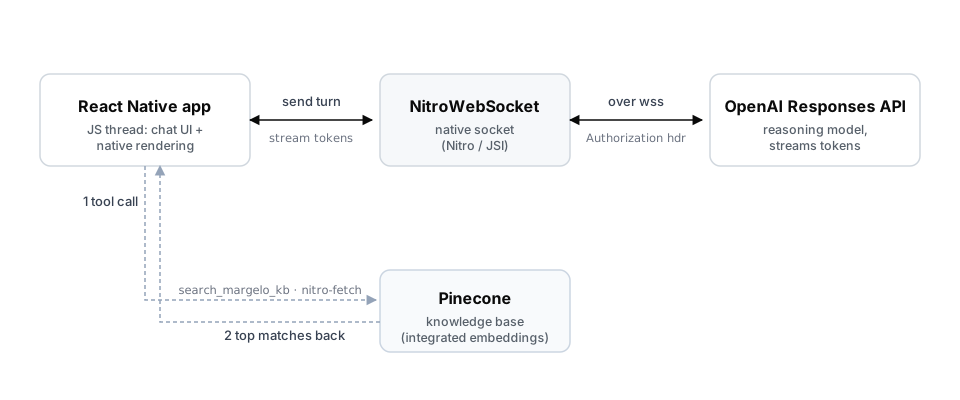
The reply arrives token by token because the app talks to OpenAI's Responses API over a WebSocket, not a one-shot HTTP request, and not React Native's built-in WebSocket but NitroWebSocket from react-native-nitro-websockets, a native drop-in (Nitro-backed, libwebsockets + mbedTLS) with the same browser-shaped API. Opening it is a constructor call, and the API key rides the handshake as an Authorization header:
import {NitroWebSocket} from 'react-native-nitro-websockets';

const socket = new NitroWebSocket(OPENAI_WS_URL, undefined, {
  Authorization: `Bearer ${OPENAI_API_KEY}`,
});

socket.onopen = () => setConnection('open');
socket.onmessage = event => handleServerEvent(event.data);
Everything underneath that browser-shaped API is native: the Authorization header rides straight onto the upgrade request, so the key travels with the handshake, and text frames are decoded off the JS thread (more on that below). That native implementation is what keeps the JS thread free.
The JS thread is where your React app's logic runs: your components, state updates, API calls, and touch handling all happen here. When it's busy, it can't keep up with the frame deadline and the UI drops frames, which is what "lag" usually is. Keeping expensive work off it is the whole game. (React Native docs)
Sending a turn is one JSON frame (type: 'response.create', with the model, user input, and tools). We used gpt-5.5, but any model the Responses API supports works. The answer streams back as typed events we route by type; the one with visible text is the token delta:
case 'response.output_text.delta':
  return {kind: 'delta', text: event.delta ?? ''};
Each delta is appended to the in-flight assistant message, which is what you see typing itself out on screen.
Why a WebSocket at all, when the Responses API streams over HTTP too? Because a turn is a back-and-forth: the model can call our search tool, we hand results back, and it continues, all before the final answer. Over HTTP that's a fresh request per turn, resending the growing context each time; WebSocket mode keeps one connection to /v1/responses and continues a turn by sending only the new items plus a previous_response_id, exactly the shape of a tool-calling loop. OpenAI reports up to ~40% faster end-to-end for rollouts with 20+ tool calls.
Two more Nitro pieces sit underneath this:
- On the wire, WebSocket text frames are UTF-8 bytes. A spec-compliant
WebSocketdecodes them into a JS string for you;react-native-nitro-websocketsdoes the same, but runs that decode in native code withTextDecoderfrom react-native-nitro-text-decoder. Soevent.datais already a string by the time youronmessageruns, with no per-frame UTF-8 work left on the JS thread. - The knowledge-base lookup (the RAG call, covered later) uses
fetchfrom react-native-nitro-fetch, the fastest drop-in replacement for the standard fetch in React Native. (yes really, look at the benchmarks)
Warming the socket before the app boots
Opening a wss:// connection has a fixed cost: TCP, then the TLS handshake, then the HTTP upgrade. On a cold start none of it can begin until the JS bundle has loaded enough to run new NitroWebSocket(...). react-native-nitro-websockets can move that work earlier, onto a native background thread that runs before React Native boots. You register the intent once:
import {prewarmOnAppStart} from 'react-native-nitro-websockets';

prewarmOnAppStart(OPENAI_WS_URL, undefined, {
  Authorization: `Bearer ${OPENAI_API_KEY}`,
});
On the next launch, native code reads that queue and starts connecting while the bundle is still loading. When the app later calls new NitroWebSocket(sameUrl, ...), the constructor adopts the warm connection instead of opening a fresh one, and the call site does not change.
How much does it buy? The head start equals the gap between when the native prewarm starts connecting and when JS gets around to constructing the socket. On release builds we measured roughly 150 ms on iOS (iPhone 16) and 250 ms on Android (Samsung Galaxy S22).
It's clear that prewarming is a great opportunity for performance gains in network-dependent apps that use websockets, so do consider nitro-websockets (and the general nitro-fetch family) when building such apps.
A note on the API key
You'll have spotted the key sits in the app and is sent straight from the device. Fine for a throwaway demo, nothing more: anything in an app binary can be extracted, so in a real product the key lives server-side. Put a small backend, or Expo Router API routes, between the app and OpenAI and have the device call that. Never ship a provider key in a production bundle (please!). rnsec by Adnan (another Margelo Avenger) scans your apps to be sure you (or your agent) didn't.
Answering Margelo questions with RAG
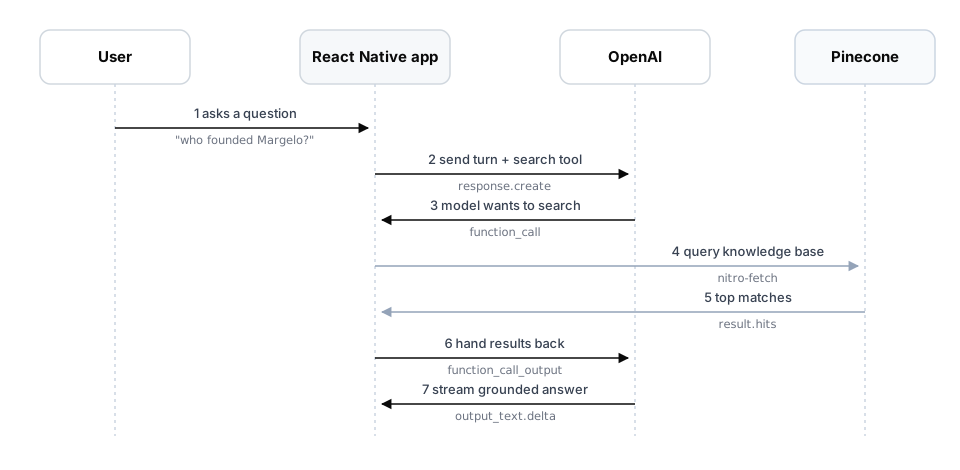
A general model probably doesn't know who founded Margelo or which libraries it maintains. So MargeloChat doesn't ask it to guess: it hands the model a tool to look things up in a Margelo knowledge base and answer only from what comes back. That's retrieval-augmented generation, wired as an OpenAI function call over the same WebSocket.
Giving the model a search tool
Every request declares one tool, search_margelo_kb, alongside the user's message:
const SEARCH_TOOL = {
  type: 'function',
  name: 'search_margelo_kb',
  description:
    "Search Margelo's knowledge base for facts about the company ... Call this " +
    "whenever the user asks anything about Margelo ... Do not answer Margelo " +
    "questions from memory.",
  parameters: {
    type: 'object',
    properties: {query: {type: 'string', description: 'A natural-language search query.'}},
    required: ['query'],
    additionalProperties: false,
  },
};
The description does the steering: it tells the model to call the tool for anything Margelo-related and not to answer from memory. So "who founded Margelo?" triggers a search; "explain the Fourier transform" doesn't. When the model decides to search, the stream carries a function_call item instead of text, and we pick it up:
case 'response.output_item.done':
  if (item?.type === 'function_call') {
    return {kind: 'tool_call', callId: item.call_id, name: item.name, args: item.arguments};
  }
Searching the knowledge base
The tool's one argument is a natural-language query, which we hand straight to Pinecone. The index uses integrated embedding, so we send raw text (not a vector); Pinecone embeds the query server-side and returns the closest chunks:
import {fetch} from 'react-native-nitro-fetch';

const response = await fetch(
  `${PINECONE_INDEX_HOST}/records/namespaces/${PINECONE_NAMESPACE}/search`,
  {
    method: 'POST',
    headers: {'Api-Key': PINECONE_API_KEY, 'X-Pinecone-Api-Version': '2025-01', /* ... */},
    body: JSON.stringify({query: {inputs: {text: query}, top_k: topK}, fields: ['title', 'chunk_text']}),
  },
);

const data = await response.json();
const hits = data.result?.hits ?? [];
return hits.map(h => h.fields?.chunk_text ?? '').filter(Boolean).join('\n\n---\n\n');
result.hits comes back sorted best-first, each carrying the chunk_text field we asked for. We join the top few into one context string.
Handing the result back
Now the model needs to see what we found. We send the joined chunks back as a function_call_output, linked to the call it made via previous_response_id, and re-declare the tool in case it wants to search again:
JSON.stringify({
  type: 'response.create',
  input: [{type: 'function_call_output', call_id: callId, output}],
  previous_response_id: previousResponseId,
  tools: [SEARCH_TOOL],
});
The model reads that context and streams its answer, grounded in the knowledge base rather than its own memory, over the very same socket. A small guard caps the loop at a few tool calls per turn so a confused model can't search in circles.
Swiping to recents
That is a single message end to end: composed, sent, streamed back, grounded with RAG, and its reasoning laid out. Stepping back from one message to the app around it, there's one more native piece worth showing, moving between chats.
Swiping between the chat and the recent-conversations list isn't a JS gesture animation, it's a native pager. The whole app is two pages inside a react-native-pager-view (also from Callstack), which wraps UIPageViewController on iOS and ViewPager2 on Android:
<PagerView ref={pagerRef} initialPage={1} onPageSelected={onPageSelected}>
  <View key="recents"><RecentsScreen onNewChat={newChat} /></View>
  <View key="chat"><ChatScreen ref={chatRef} onOpenRecents={goToRecents} /></View>
</PagerView>
initialPage={1} opens on the chat page; swipe right and the recents list slides in from the left. Because the pager is the platform component, the drag tracks your finger 1:1; it isn't something we animate. Navigating in code is just as simple, a ref call:
const goToChat = () => pagerRef.current?.setPage(1);      // animated
const goToRecents = () => pagerRef.current?.setPage(0);
The only glue is onPageSelected: when the pager settles on recents we dismiss the keyboard, so swiping away from the composer doesn't leave it hanging. The gesture, transition, and momentum all come free from the native pager.
Why it all feels native
As a rule, lag in a React Native app means the JS thread is busy. We offload the heavy lifting to native threads to keep it free.
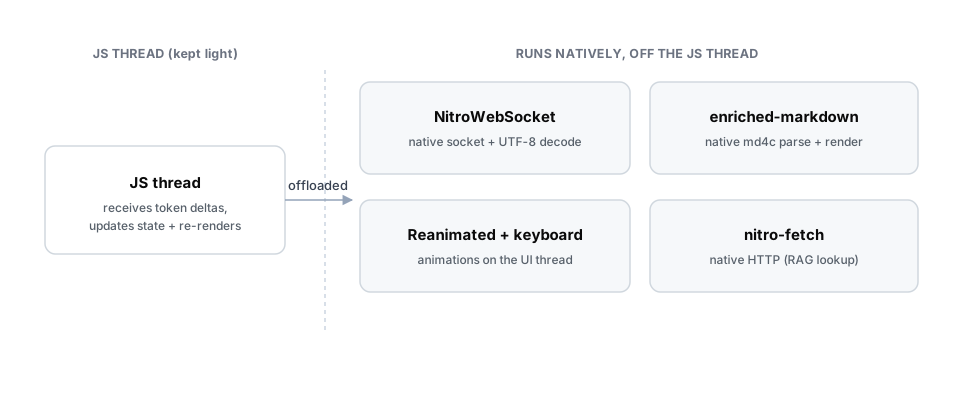
- The animations live on the UI thread. The composer gliding with the keyboard, the pill swelling for an attachment, the message sliding up to the top, all of it is Reanimated and react-native-keyboard-controller driving values on the UI thread. So they stay buttery even while the JS thread is handling other tasks.
- The stream is decoded natively. As we saw,
NitroWebSockethands us strings that are already decoded, so JS never burns a frame doing UTF-8 work per token. - Markdown is parsed and rendered natively. Every reply is markdown, and react-native-enriched-markdown parses it with native md4c and renders native text components, so a reply painting itself out token by token doesn't cause performance issues.
- Even the RAG lookup is native. The one plain HTTP request in the app, the Pinecone search, goes through react-native-nitro-fetch. The benchmarks show it is around 15–25% faster than the built-in
fetch(1.30× on average: 192 ms → 147 ms, release build, idle, Wi-Fi), and that's without any prefetching.
And it holds up when you measure it. On a physical iPhone 16 in a release build, once things settle, scrolling through a long conversation keeps both the JS thread and the UI thread at around 57-60fps, the iPhone 16's maximum refresh rate, at around 15% CPU and 225MB of memory. Generating a reply pushes CPU up to roughly 45-55%, and the UI thread still holds that 60fps ceiling. (Measured with react-native-performance-toolkit.) Cold launch is quick too: around 0.6s from process creation to first frame on the same device, measured with Xcode Instruments' App Launch template, with the interactive chat following shortly after.
Small optimizations like these add up, so consider them when building your own React Native apps.
A few general tips
A handful of things that bit us (or nearly did) building this, and that apply to pretty much any React Native app.
Profile in a release build, not in dev. A dev bundle's JS runs far slower than production, so anything measured over Metro can be off. Use react-native-release-profiler (Margelo): startProfiling() / stopProfiling() records a Hermes trace on-device in a real release build and drops it in Downloads; convert and open it with npx react-native-release-profiler --fromDownload --appId <id>. You can also profile with agent-device or argent.
Treat markdown rendering as a hot spot. Every reply is markdown, and parsing it on the JS thread can jank the UI. Reach for a library that parses and renders natively, we used react-native-enriched-markdown (Software Mansion), which parses with native md4c and renders native text, so streaming stays smooth.
Read your list's performance docs. Legend List is fast by default but has real levers, recycleItems, estimatedItemSize, a stable keyExtractor, drawDistance, worth a pass through its performance guide.
Steal from the apps you admire. Before writing a line of UI, study interfaces you love. Spotted in Prod and Mobbin are goldmines for mobile UI and interaction patterns, especially LLM chat UIs, and spend time in the real apps too: ChatGPT for iOS, Claude, and Vercel's v0 (they all inspired this demo).
Conclusion
At the top we asked: can a native-feeling chat UI be built with React Native? Having walked through the floating composer, the streaming, the natively-rendered markdown, and the RAG wiring, I hope the answer is a clear yes. React Native is native, and with the right performance choices a chat app built with it stands shoulder to shoulder with native Swift and Kotlin ones. The demo will be open-sourced in due time, so you can use it as a base for whatever AI chat app you're building! 🚀 Huge thanks to all the maintainers who built the awesome OSS libraries we used for this demo. Listed below are those libraries and their maintainers.
- Legend List — Jay Meistrich / Margelo
- react-native-keyboard-controller — Kiryl Ziusko / Margelo
@callstack/liquid-glass— Oskar Kwaśniewski and Callstack- react-native-pager-view — Callstack
- react-native-reanimated — Software Mansion
- react-native-enriched-markdown — Software Mansion
@shopify/react-native-skia— Shopify- react-native-true-sheet — Jovanni Lo
- Nitro — Marc Rousavy / Margelo
- react-native-nitro-fetch, react-native-release-profiler, and nitro-websockets — Szymon Kapała / Margelo
- react-native-nitro-symbols — Dave Mkpa-Eke / Margelo