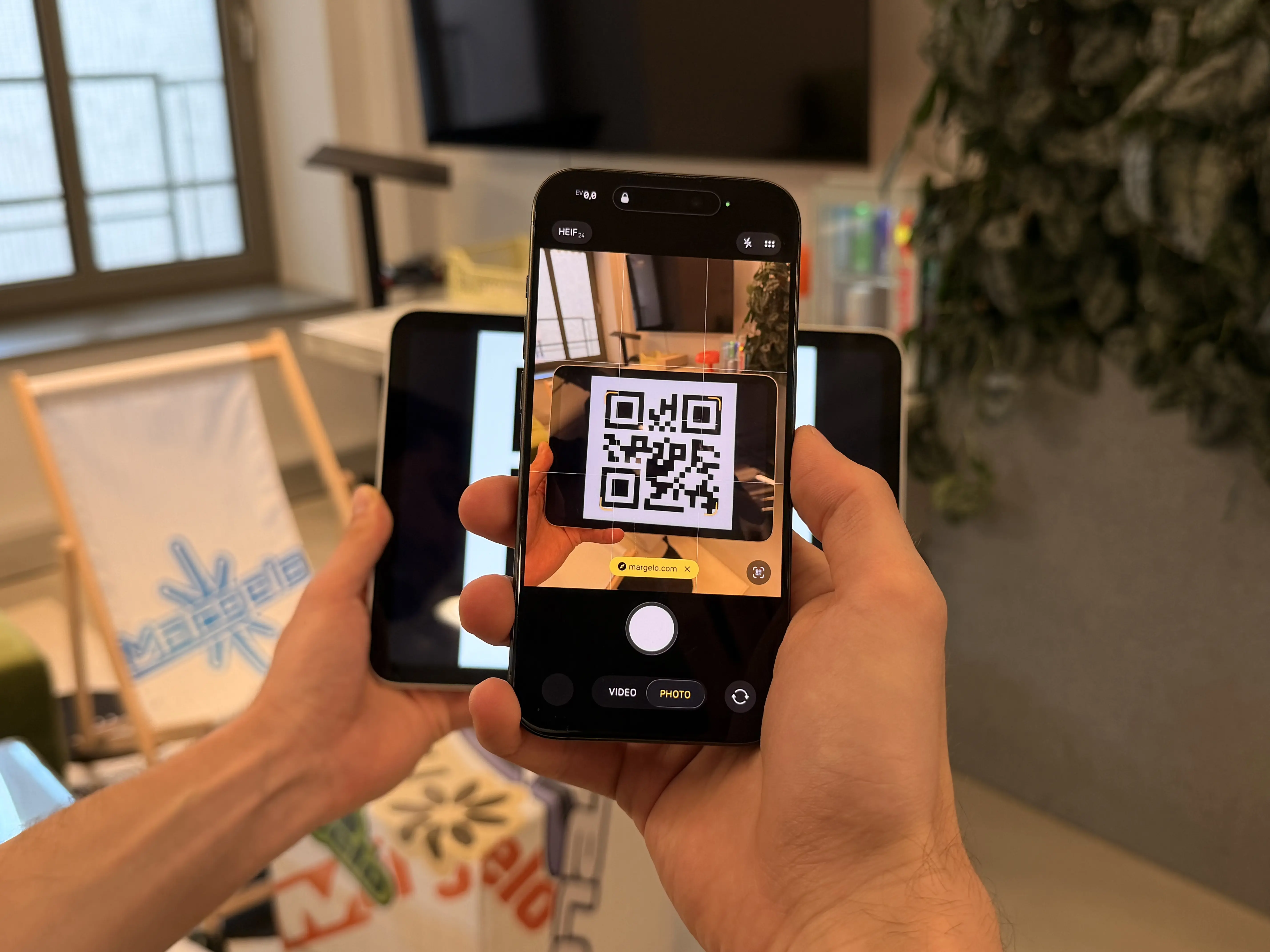
Scanning QR codes and barcodes sounds simple, until it reaches production.
Now it has to be fast. It has to work on both a budget Android device and the latest iPhone. It has to recognize QR, EAN-13, PDF-417, and whatever legacy barcode your operations team still depends on.
And it has to fit cleanly into a much larger app.
That’s exactly where VisionCamera V5 shines.
With the new react-native-vision-camera-barcode-scanner package, you get consistent barcode detection across iOS and Android using Google MLKit — with a modern API and native-level performance.
This guide is your complete reference for barcode scanning with VisionCamera V5.
We’ll install everything from scratch, handle permissions, and walk through the three scanning approaches in V5 — from the fastest drop-in solution to advanced frame processors with custom overlays.
We’ll also cover the iOS-only CameraObjectOutput, which can detect barcodes, faces, and more without MLKit.
Why use VisionCamera for barcode scanning?
VisionCamera is the most widely used camera library in the React Native ecosystem. With V5, it's also one of the best options for production barcode scanning.
-
Consistent behavior on iOS and Android: V5 uses MLKit on both platforms, so formats and accuracy stay aligned.
-
Three APIs for different levels of control: Start simple, then scale into advanced workflows.
-
Native performance: Detection runs natively and only sends results to JavaScript.
-
Works with the full ecosystem: Combine scanning with photo capture, video recording, depth data, or custom ML.
-
Open source and practical: For most apps, it’s more than enough without the cost of commercial SDKs.
If you're comparing VisionCamera to a commercial SDK like Scanbot or Dynamsoft: those are great products, but they're also closed-source, licensed per-seat, and usually overkill. For the vast majority of apps, MLKit through VisionCamera is more than accurate enough, free, and ships in a much smaller binary.
Install VisionCamera V5
You'll install two packages: the VisionCamera core and the barcode scanner plugin. Core depends on Nitro Modules and Nitro Image, which is what powers V5's native bridge.
npm i react-native-vision-camera react-native-nitro-modules react-native-nitro-image
npm i react-native-vision-camera-barcode-scanner
If you're on bare React Native, run pod install and rebuild afterwards:
cd ios && pod install && cd ..
npx react-native run-ios
npx react-native run-android
On Expo, run a prebuild and then the platform runner:
npx expo prebuild
npx expo run:ios
npx expo run:android
The barcode scanner is now a separate package so you only pull in MLKit's native dependencies if you actually need them. If you just want photos or video, you can skip react-native-vision-camera-barcode-scanner entirely and your app size stays smaller.
Request Camera Permissions
Cameras need permission. No way around it.
On iOS, add the usage description to ios/Info.plist:
<key>NSCameraUsageDescription</key>
<string>$(PRODUCT_NAME) needs access to your camera to scan QR codes and barcodes.</string>
On Android, add the permission to android/app/src/main/AndroidManifest.xml:
<uses-permission android:name="android.permission.CAMERA" />
If you're on Expo, you can instead put this into your app.json:
{
  "expo": {
    "ios": {
      "infoPlist": {
        "NSCameraUsageDescription": "$(PRODUCT_NAME) needs access to your camera to scan QR codes and barcodes."
      }
    },
    "android": {
      "permissions": ["android.permission.CAMERA"]
    }
  }
}
To actually request permission at runtime, use the useCameraPermission() hook:
import { useEffect } from 'react'
import { useCameraPermission } from 'react-native-vision-camera'

function App() {
  const { hasPermission, requestPermission } = useCameraPermission()

  useEffect(() => {
    if (!hasPermission) requestPermission()
  }, [hasPermission, requestPermission])

  if (hasPermission) {
    // return Camera screen now
  } else {
    // return Permission Denied screen
  }
}
Simple, and the hook re-renders when permission changes so you can just gate your UI on hasPermission.
Fastest Path: <CodeScanner />
If all you need is "show a camera, detect a QR, call a function", the <CodeScanner /> view does that in about ten lines.
It renders a full camera preview with a rear camera and runs MLKit on every frame internally. You don't even need a <Camera /> instance:
import { StyleSheet } from 'react-native'
import { useIsFocused } from '@react-navigation/native'
import { CodeScanner } from 'react-native-vision-camera-barcode-scanner'

function QRScreen() {
  const isFocused = useIsFocused()

  return (
    <CodeScanner
      style={StyleSheet.absoluteFill}
      isActive={isFocused}
      barcodeFormats={['qr-code']}
      onBarcodeScanned={(barcodes) => {
        for (const barcode of barcodes) {
          console.log('Scanned QR:', barcode.rawValue)
        }
      }}
      onError={(error) => {
        console.error('Code scanner failed:', error)
      }}
    />
  )
}
A few things worth pointing out:
-
isActivepauses the scanner when the screen isn't visible. Always pair this with something likeuseIsFocused()from React Navigation, otherwise the scanner keeps burning battery when the user navigates away. -
barcodeFormatsis an array, and you should keep it as tight as you can.['qr-code']is noticeably faster than['all-formats']because MLKit doesn't have to run decoders for every format. -
onBarcodeScanned(...)fires on every detected frame, not just once. If you want a "scan once then close" flow, use a ref to debounce or setisActive={false}once you get a result.
That's the whole API for 90% of use cases. If that’s all you need, you can stop reading now; your scanner is done.
Production Setup: useBarcodeScannerOutput(...)
Most real apps have a camera screen that does more than just scanning. Maybe you want to show the preview, but also take a photo once the barcode is recognized. Or maybe you want a custom viewfinder UI on top.
For that, VisionCamera exposes useBarcodeScannerOutput(...), which returns a CameraOutput you can attach to a regular <Camera /> alongside other outputs:
import { StyleSheet } from 'react-native'
import { useIsFocused } from '@react-navigation/native'
import { Camera, usePhotoOutput } from 'react-native-vision-camera'
import { useBarcodeScannerOutput } from 'react-native-vision-camera-barcode-scanner'

function ScannerWithPhoto() {
  const isFocused = useIsFocused()

  const photoOutput = usePhotoOutput()
  const barcodeOutput = useBarcodeScannerOutput({
    barcodeFormats: ['qr-code', 'ean-13', 'code-128'],
    onBarcodeScanned(barcodes) {
      console.log(`Scanned ${barcodes.length} barcodes`)
    },
    onError(error) {
      console.error('Scanner error:', error)
    }
  })

  return (
    <Camera
      style={StyleSheet.absoluteFill}
      device="back"
      isActive={isFocused}
      outputs={[photoOutput, barcodeOutput]}
    />
  )
}
For most production apps, this is the sweet spot. You get the full Camera component with all its props - constraints, zoom, torch, focus - and the scanner is just one output among many.
Tuning Scan Resolution
Barcode scanners usually don't need a 4K buffer. They need enough resolution to decode the symbol, which is often far less than the preview size. VisionCamera exposes an outputResolution option for exactly this:
const barcodeOutput = useBarcodeScannerOutput({
  barcodeFormats: ['qr-code'],
  outputResolution: 'preview',
  onBarcodeScanned: handle
})
'preview' is the default and gives you the lowest latency - it reuses preview-sized buffers. 'full' forces the highest available camera buffers and is useful for dense codes like PDF-417 on a shipping label, or small QR codes scanned from far away. Use it only when 'preview' isn't enough; it costs CPU and battery.
Full Control: Frame Processors
Sometimes you want to draw a bounding box around the detected code on top of the preview. Or read from two scanners at once. Or decide when to process a frame.
For those cases, use useBarcodeScanner(...), which returns a BarcodeScanner hybrid object you can call from inside a frame processor:
import { StyleSheet } from 'react-native'
import { Camera, useFrameOutput } from 'react-native-vision-camera'
import { useBarcodeScanner } from 'react-native-vision-camera-barcode-scanner'
import { useSharedValue } from 'react-native-worklets'
import type { Rect } from 'react-native-vision-camera'

function FrameProcessorScanner() {
  const barcodeScanner = useBarcodeScanner({
    barcodeFormats: ['qr-code']
  })
  const boundingBox = useSharedValue<Rect | undefined>(undefined)

  const frameOutput = useFrameOutput({
    onFrame(frame) {
      'worklet'
      try {
        const barcodes = barcodeScanner.scanCodes(frame)
        boundingBox.value = barcodes[0]?.boundingBox
      } finally {
        frame.dispose()
      }
    }
  })

  return (
    <Camera
      style={StyleSheet.absoluteFill}
      device="back"
      isActive={true}
      outputs={[frameOutput]}
    />
  )
}
Two gotchas worth knowing:
-
Always call
frame.dispose() -
Frames hold native memory. Forgetting this can cause dropped frames and memory pressure.
-
Remember the worklet boundary
-
onFrame(...)runs off the JS thread. Use shared values or schedule work back when needed.
Drawing an overlay
Barcode coordinates from scanCodes(...) are in the frame's coordinate system, not the preview view's. If you want to draw a box on top of the preview, you have to convert. VisionCamera has coordinate system helpers for exactly that:
onFrame(frame) {
  'worklet'
  try {
    const barcodes = barcodeScanner.scanCodes(frame)
    for (const barcode of barcodes) {
      const { x, y } = barcode.boundingBox
      const cameraPoint = frame.convertFramePointToCameraPoint({ x, y })
      const previewPoint = preview.convertCameraPointToViewPoint(cameraPoint)
      scheduleOnRN(setOverlayPoint, previewPoint)
    }
  } finally {
    frame.dispose()
  }
}
This is one area where V5 is a major improvement over V4.
Understanding the Barcode Result
Regardless of which API you use, you get back Barcode objects with this shape:
| Property | Type | What it's for |
|---|---|---|
format | BarcodeFormat | 'qr-code', 'ean-13', 'pdf-417', etc. |
rawValue | string | undefined | The decoded text. 99% of the time this is what you want. |
displayValue | string | undefined | A user-friendly version (e.g. formatted phone number). |
rawBytes | ArrayBuffer | undefined | For binary payloads you need to parse yourself. |
valueType | BarcodeValueType | Semantic category - 'url', 'wifi', 'phone', etc. |
boundingBox | Rect | Position in the frame's coordinate system. |
cornerPoints | Point[] | Four corners of the detected code. |
valueType is especially useful. MLKit already parses a QR as a URL, a vCard, Wi-Fi credentials, a calendar event, an ISBN - you can branch on it without writing your own regex:
switch (barcode.valueType) {
  case 'url':
    openInBrowser(barcode.rawValue!)
    break
  case 'wifi':
    joinWifiNetwork(barcode.rawValue!)
    break
  default:
    showGenericResult(barcode.displayValue ?? barcode.rawValue)
}
Supported Barcode Formats
MLKit covers the full realistic set of 1D and 2D codes you'll run into. Here are the string literals TargetBarcodeFormat accepts:
-
1D Linear Codes:
'code-128','code-39','code-93','codabar','ean-13','ean-8','itf','upc-a','upc-e' -
2D Matrix Codes:
'qr-code','aztec','data-matrix','pdf-417' -
Wildcard:
'all-formats'- enables everything
As mentioned earlier: always list only the formats you need. Detection runs faster, and you'll get fewer false positives on lookalike codes.
iOS-Only Alternative: CameraObjectOutput
Before we wrap up, there's a second path worth mentioning that doesn't use MLKit at all.
VisionCamera core ships with a CameraObjectOutput, which uses Apple's built-in AVCaptureMetadataOutput to detect objects natively - no third-party dependencies, no extra binary size. It can detect barcodes, and also faces, human bodies, pets, and "salient objects" (Apple's term for "the thing the user is probably looking at").
The tradeoff is that it's iOS only. If you can live with that - or if your app is iOS-first, or if you're building a kiosk on an iPad - this is the leanest way to do detection.
Use it via useObjectOutput(...):
import { StyleSheet } from 'react-native'
import { Camera, useObjectOutput } from 'react-native-vision-camera'

function NativeScanner() {
  const objectOutput = useObjectOutput({
    types: ['qr', 'face', 'human-body'],
    onObjectsScanned(objects) {
      for (const obj of objects) {
        console.log(`Detected ${obj.type} at`, obj.boundingBox)
      }
    }
  })

  return (
    <Camera
      style={StyleSheet.absoluteFill}
      device="back"
      isActive={true}
      outputs={[objectOutput]}
    />
  )
}
The ScannedObjectType union is richer than what MLKit exposes:
-
Barcodes and 2D codes:
'qr','aztec','data-matrix','pdf-417','micro-qr','micro-pdf-417','code-128','code-39','code-39-mod-43','code-93','codabar','ean-8','ean-13','gs1-data-bar','gs1-data-bar-expanded','gs1-data-bar-limited','interleaved-2-of-5','itf-14','upc-e' -
People and animals:
'face','human-body','human-full-body','dog-head','dog-body','cat-head','cat-body' -
Generic:
'salient-object'
Each ScannedObject you get back has a type and a normalized boundingBox (0-1 in camera-space coordinates).
Drawing an overlay
Just like with the MLKit scanner, the coordinates you get back are in camera-space, not view-space - so you can't draw a box on top of the preview with them directly. The preview view exposes convertScannedObjectCoordinatesToViewCoordinates(...) for exactly this:
onObjectsScanned(objects) {
  for (const obj of objects) {
    const objectViewRelative = preview.convertScannedObjectCoordinatesToViewCoordinates(obj)
    // objectViewRelative.boundingBox is now in view-space, ready to render
    setOverlay(objectViewRelative.boundingBox)
  }
}
It returns a new ScannedObject with its boundingBox already mapped to view coordinates, so you can feed it straight into a <View> or animated overlay without doing the math yourself.
A few things to keep in mind:
-
iOS only. On Android this output just won't be supported. If your app has to work cross-platform, use the MLKit-based barcode scanner instead (or use both:
CameraObjectOutputon iOS,react-native-vision-camera-barcode-scanneron Android). -
Payloads, not parsed values. For barcodes, Apple exposes the raw string but no semantic parsing like MLKit's
valueType. If you need that, stick with MLKit. -
Lightweight. No MLKit, no extra native code, no extra binary. It's just Apple's built-in detector, which is genuinely fast and power-efficient.
If you just want to draw a box around every face in the preview and you're shipping iOS only - this is the simplest thing that can possibly work.
Which Scanner API Should You Choose?
Use this quick guide:
-
Need the fastest path to a QR scanner? →
<CodeScanner /> -
Already using
<Camera />? →useBarcodeScannerOutput(...) -
Need overlays or custom logic? →
useBarcodeScanner(...)+ frame processors -
Building iOS-only or need face/body detection too? →
useObjectOutput(...)
You can also combine approaches when needed.
There's nothing stopping you from running useBarcodeScannerOutput(...) and useObjectOutput(...) at the same time if that's the best tool for each job.
Common Gotchas
A handful of things I see come up over and over on the VisionCamera issue tracker:
-
The scanner runs when the user leaves the screen. Fix: pass
isActive={useIsFocused()}(React Navigation) or otherwise gate on your app's state. Camera sessions are expensive to leave running. -
"Why is it so slow?" You're probably using
['all-formats']. Narrow it to the specific formats you care about. -
Barcodes detected in weird rotations. Small QR codes at an angle often need a higher resolution. Set
outputResolution: 'full'. -
onBarcodeScanned(...)fires 30 times per second. That's working as designed - the callback fires per frame. Debounce in JS, or setisActive={false}once you have a scan you want to act on. -
Coordinates are wrong when I draw overlays. Frame coordinates ≠ preview coordinates. Use the coordinate conversion helpers on
FrameandPreviewView. -
Build fails on Android with "duplicate class com.google.mlkit...". You've got MLKit elsewhere in your app with a different version. Align the versions, or let the barcode-scanner package pull in its own.
Final Thoughts
VisionCamera V5 turns barcode scanning from a frustrating integration into a solved problem.
-
Need something simple? Use
<CodeScanner /> -
Need more control? Use
useBarcodeScannerOutput(...) -
Need advanced overlays? Use frame processors
-
Need lightweight iOS-native detection? Use
CameraObjectOutput
The biggest advantage is that you can start simple and scale into advanced use cases without switching libraries.
Install it, ship it, and get back to building the product that matters.
npm i react-native-vision-camera react-native-nitro-modules react-native-nitro-image
npm i react-native-vision-camera-barcode-scanner
...then copy the snippet from the Fastest Path section and you're done. The new VisionCamera docs have a full Code Scanning guide and API reference for everything covered here.
Building something custom on top of VisionCamera - a kiosk, an inventory app, an AR shopping experience? That's exactly the kind of work we do at Margelo. Reach out and we'll help you ship it.